
Live Auction Overlay for Streaming - Make Your Auction Look Professional

A local cricket auction in Ahmedabad set up a YouTube live stream for their 80-player auction. They pointed a phone camera at the projector screen, used a Bluetooth speaker for audio, and went live. The stream had 230 viewers - players, family members, and cricket fans from the area.
But the feedback was consistent: "I could barely see the player names." "The audio was echoing." "It looked like a phone recording of a TV."
For their next edition, they added a proper overlay - the kind you see in IPL broadcasts, with the player card, bid amount, team purse, and squad status updating in real time. Same YouTube channel, same audience. This time: 1,400 viewers, 47 shares, and three DMs from potential sponsors.
The overlay is the difference between "someone filmed their auction" and "this looks like a real event."
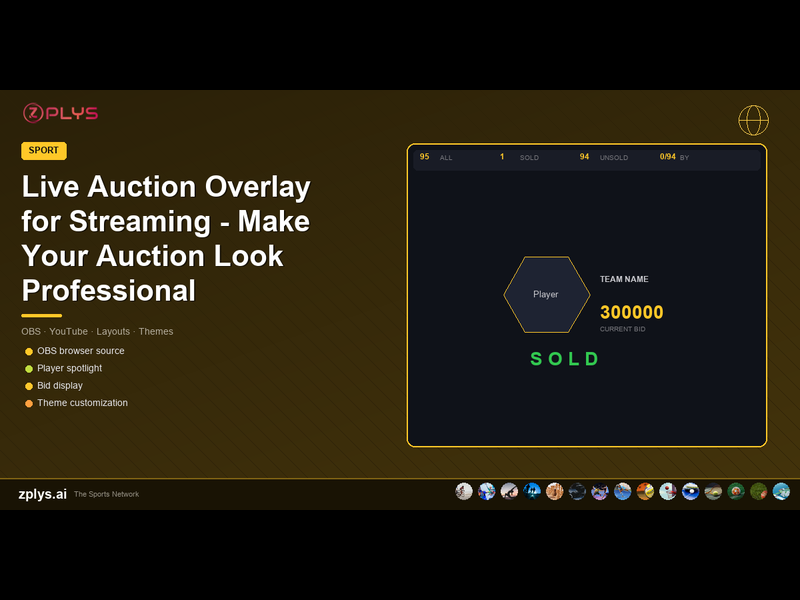
What an Auction Overlay Shows
A professional auction overlay displays these elements in real time:
- ●Player spotlight: current player's name, photo, role, stats, and base price - prominently displayed at the center or upper portion of the screen.
- ●Current bid: the amount and which team placed it. Updates instantly when a new bid is placed.
- ●Countdown timer: configurable (15-30 seconds). When the timer expires without a new bid, bidding closes. Creates urgency.
- ●Team purse tracker: all teams' remaining budgets, visible as a bar or number. Viewers (and team owners watching remotely) can see who can still afford to bid.
- ●Squad status: how many slots each team has filled vs their total. A team with 10/11 slots filled is making their last pick - the audience knows it is important.
- ●Lower third ticker: scrolling updates - "SOLD: Rahul Sharma to Team Warriors for Rs 8,000" - for viewers who just tuned in.
Setting Up the Overlay with OBS
OBS Studio (free, open-source) is the standard software for live streaming. Here is the setup:
Step 1: Install OBS
Download OBS Studio from obsproject.com. It runs on Windows, Mac, and Linux. No cost.
Step 2: Set Up Your Camera Source
Add a "Video Capture Device" source in OBS pointing to your webcam or phone camera (via DroidCam or similar). This captures the venue - the auctioneer, the room, the energy.
Step 3: Add the Overlay as a Browser Source
This is where the magic happens. Auction platforms like Zplys generate the overlay as a web page URL. In OBS, add a "Browser" source and paste the overlay URL. The overlay renders as a transparent layer on top of your camera feed.
The overlay updates automatically - when a bid is placed in the auction software, the overlay on the stream changes in real time. No manual editing, no switching between tabs.
Step 4: Configure Overlay Position
Drag and resize the browser source to fit your stream layout. Common arrangements:
- ●Full-screen overlay with camera in a small corner (picture-in-picture) - emphasises data
- ●Camera as main feed with overlay elements at the bottom and sides - emphasises the venue atmosphere
- ●Split screen: camera on left, overlay on right - balances both
Step 5: Start Streaming
Connect OBS to your YouTube or Instagram Live stream key, click "Start Streaming," and you are live. The overlay updates automatically throughout the auction.
Overlay Themes and Customization
Zplys offers multiple overlay layouts and themes:
- ●5 layout options: different arrangements of player card, bid info, and team data
- ●6 colour themes: to match your tournament branding
- ●6 font choices: from professional to bold to casual
The overlay is configured in the auction settings. You set the theme and layout once, copy the overlay URL, and paste it into OBS. Changes to the theme are reflected instantly in the stream.
For tournaments with sponsors, the overlay can include sponsor logos - visible on every frame of the stream for the entire auction duration. This is a strong sponsorship deliverable.
Audio Setup
Good audio matters more than good video. A stream with decent audio and average video is watchable. The reverse is not.
- ●Use a dedicated microphone for the auctioneer (a lapel mic connected to your laptop, or a wireless mic into the room's PA system that OBS captures)
- ●If using the room PA system, capture its audio via a 3.5mm aux cable from the PA output to your laptop's microphone input
- ●Avoid relying on your webcam's built-in mic - it picks up room echo and audience noise, drowning out the auctioneer
Engagement During the Stream
A live stream with an overlay is engaging, but you can amplify it:
- ●Monitor the YouTube/Instagram chat. Have someone read out comments - "Viewer asks: why didn't Team Lions bid on Rahul?" The auctioneer can respond, creating interaction.
- ●Display viewer count occasionally - "We have 400 people watching live!" builds excitement in the room and online.
- ●After each set, show a summary slide: which team spent the most, which player went for the highest price, how many players remain.
Post-Auction Content
The stream recording is content gold. After the auction, clip the highlights: the most expensive player's bidding war (2-3 minutes), the surprise pick that nobody expected, the final squad reveal for each team, and the auctioneer's best moments.
Share clips on Instagram Reels, WhatsApp status, and YouTube Shorts. Tag team owners and players. This content promotes the tournament and sets the stage for next year's auction - sponsors see the reach, players see the production quality, and new team owners want to be part of it.
What It Costs
The total cost of adding a professional overlay to your auction stream: OBS - free. Webcam (or phone with DroidCam) - free (you already have it). Microphone - Rs 500-2,000 (a basic lapel mic). Auction platform with overlay - included in Zplys auction features. Internet for streaming - your regular connection.
For Rs 2,000 or less, your auction stream looks like a professional broadcast. The ROI in sponsor interest, player engagement, and tournament branding is many multiples of that.